




 Back to index
How to connect any AI assistant to online-billing-service.com over MCP
Our MCP server is the same one for every assistant. If you use a client that has no tab of its own under Integrated services — your own agent, an IDE, or an assistant we do not list yet — you connect it from here.
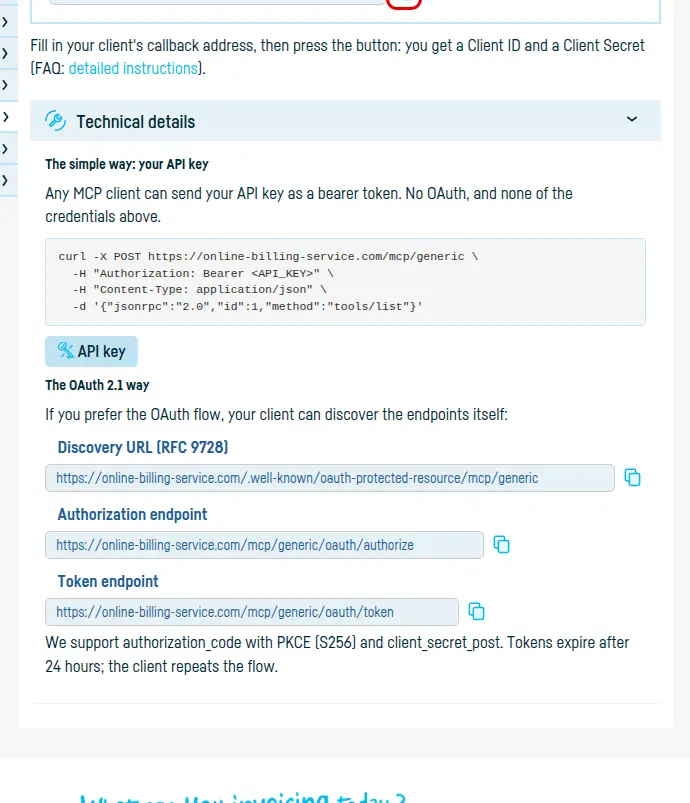
There are two ways. The API key works in any MCP client and needs no OAuth; the OAuth 2.1 flow is there for clients that prefer it.
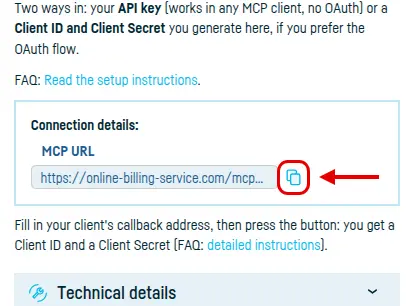
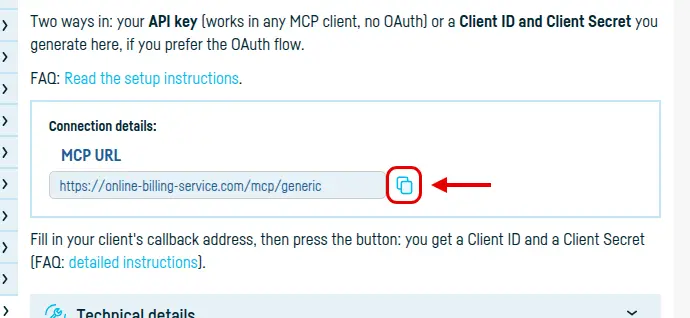
Step 1: copy the MCP URL
Open Integrated services → Generic MCP and click Copy, next to MCP URL. The address is the same whichever way you choose.
The simple way: your API key
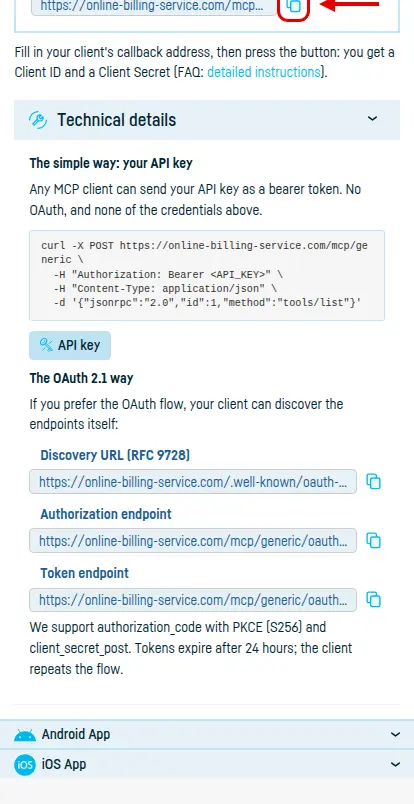
Any MCP client can send your API key as a bearer token — no OAuth, and none of the credentials below. The key is under My account → API, and Technical details has an example ready to run.
The OAuth 2.1 way
If you prefer OAuth, fill in your client's callback address under Integrated services → Generic MCP — it has to be https, or http://localhost for an agent running on your own machine — and press the generate button. You get a Client ID and a Client Secret; the secret is shown once.
Your client can discover the rest for itself, starting from the discovery URL (RFC 9728) in the same section: the authorisation endpoint and the token endpoint. We support authorization_code with PKCE (S256) and client_secret_post.
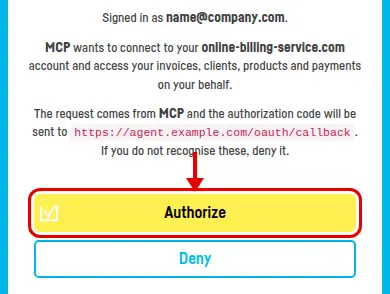
Last step: authorise access
The first time it connects, your client sends you to an online-billing-service.com page showing which account you are signed in as and what it is about to reach. Press Authorize.

Worth knowing: the access token expires after 24 hours and the client renews it on its own. You can end the access at any time from Integrated services → Generic MCP, with Disable integration.
Back to index