


 Back to index
How to connect Le Chat (Mistral) to online-billing-service.com
Through the MCP connector, Le Chat (Mistral) works directly on the data in your online-billing-service.com account: invoices, clients, products and payments.
You need:
- a Le Chat account that allows adding connectors;
- an online-billing-service.com subscription that includes the integration.
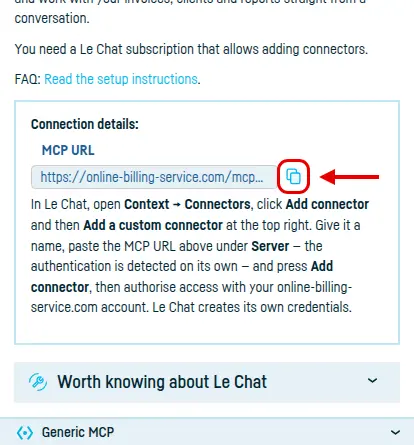
Step 1: copy the MCP URL
Open Integrated services → Le Chat (Mistral) and click Copy, next to MCP URL.
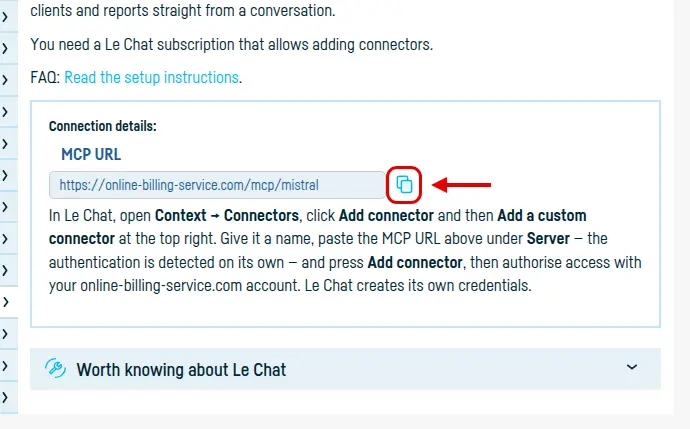
You need no Client ID and no Client Secret: Le Chat creates its own credentials.
Step 2: open the connectors in Le Chat
In the sidebar go to Context → Connectors, press Add connector, and on the page that opens press Add a custom connector, at the top right.

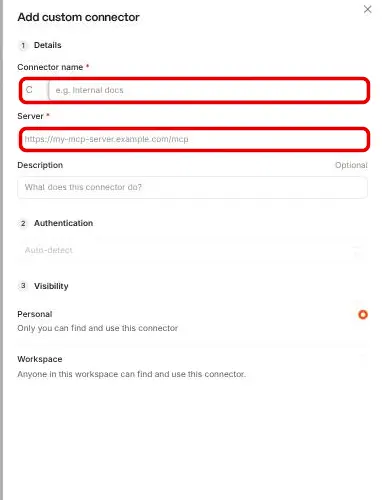
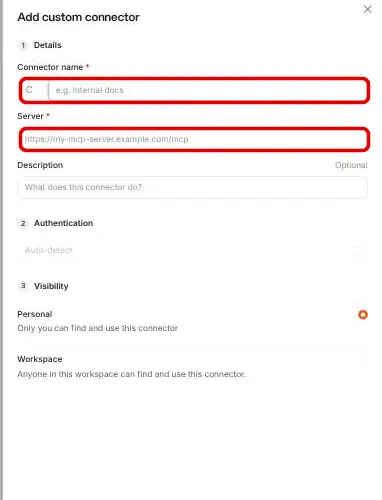
Step 3: fill in the name and the server address
Give it a name (online-billing-service.com, say) and paste the address you copied in step 1 into Server. The authentication is detected on its own — leave Authentication alone. Press Add connector.
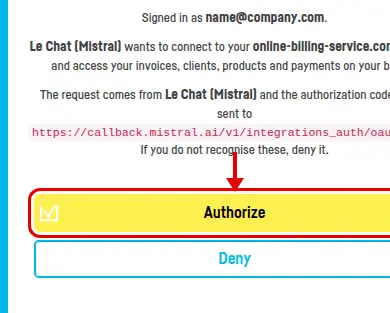
Step 4: authorise access
An online-billing-service.com page opens showing which account you are signed in as and what Le Chat is about to reach. Press Authorize.

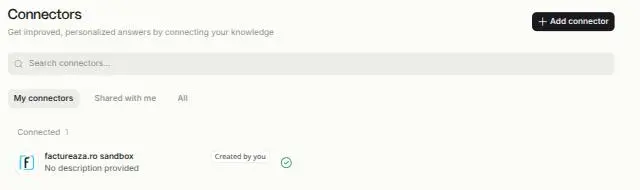
Done
The connector appears in the list under Connected.
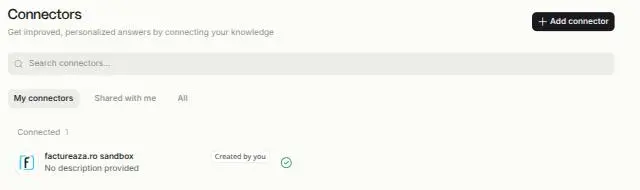
In a new conversation, pick the connector from the + menu (or type /) so Le Chat can use it — otherwise it answers without the data in your account.
Worth knowing: Le Chat reads the tool list once, when it connects. When we add new tools, remove the connector and add it again to see them.
Back to index